
Wave System
The Wave System manages how enemies spawn, wave progression, and obstacle placement. Configure spawn counts, timing, and obstacle behavior through the Unity Inspector.
What You Can Customize
This guide covers all wave system customization:
- Enemy spawn counts per wave
- Maximum enemies per wave cap
- Enemy spawn delay timing
- Obstacle spawn counts
- Obstacle visual behavior and colors
- Wave progression flow
All configuration happens through the WaveManager component.
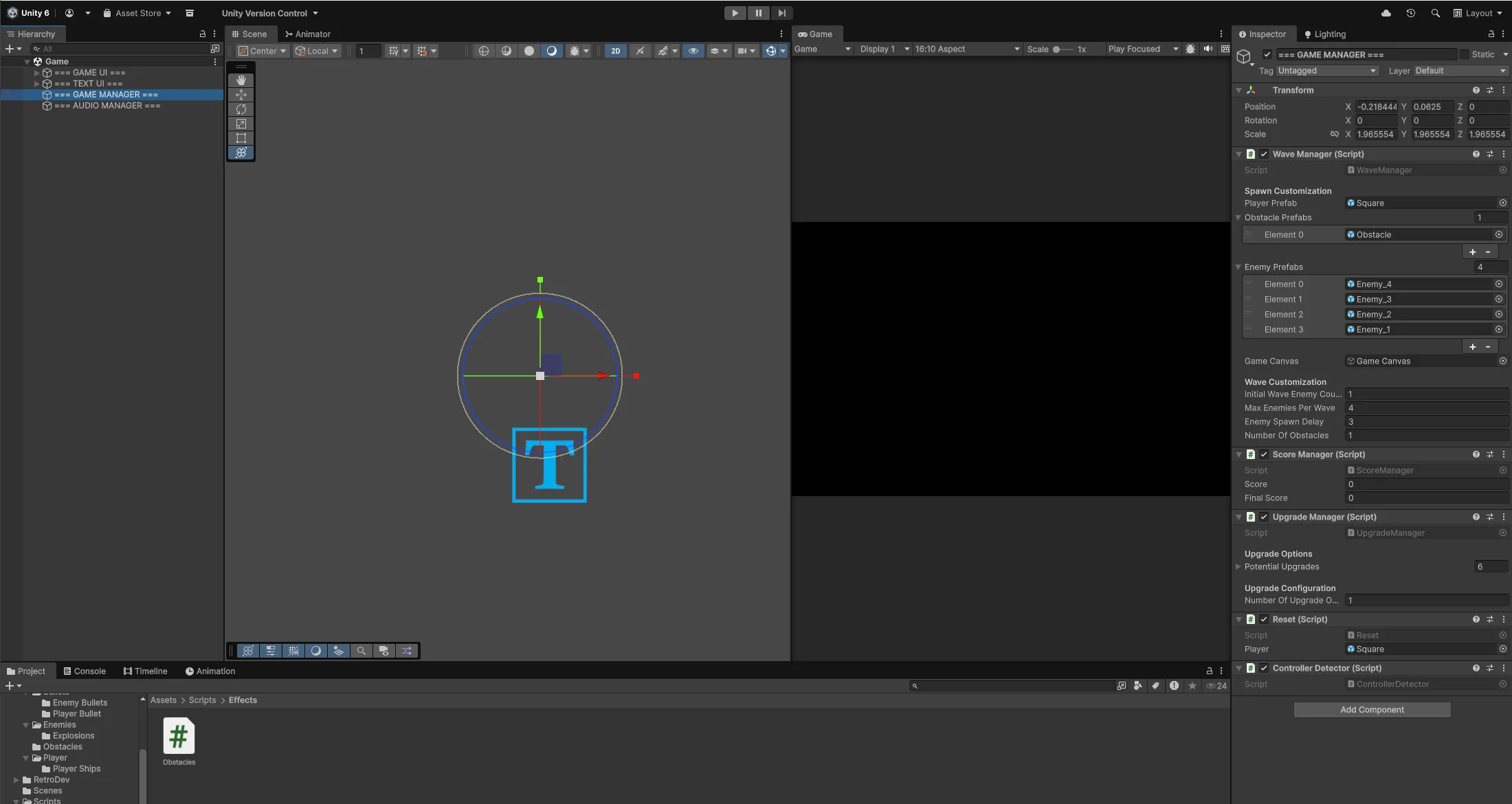
Wave Manager Configuration
The WaveManager controls all wave spawning and progression logic.
Location
Game Scene > === GAME MANAGER === > WaveManager (Script)
The WaveManager component is attached to the game manager object in the Game scene.
Spawn Customization
Control which prefabs are used for spawning.
Inspector Fields
Spawn Customization:
- Player Prefab: The player ship to spawn (set automatically from shape selection)
- Obstacle Prefabs: Array of obstacle prefabs available for spawning
- Enemy Prefabs: Array of enemy prefabs available for spawning (covered in Combat & Enemies)
- Game Canvas: Reference to the canvas where objects spawn
Player Prefab
The Player Prefab field is automatically set from the shape selection menu. When a player chooses a ship, that selection is stored and used by the WaveManager.
How it works:
- Player selects ship in shape selection screen
- Selection is stored in
ShapeSelect.selectedShape - WaveManager retrieves this in
Awake()and assigns toplayerPrefab - Selected ship spawns at the start of each wave
You don’t need to manually set this field.
Obstacle Prefabs Array
This array determines which obstacle variants can spawn during waves.
Steps to add obstacles:
- Navigate to WaveManager component
- Expand the Obstacle Prefabs array
- Increase the array size
- Drag your obstacle prefabs into the slots
Steps to remove obstacles:
- Expand the Obstacle Prefabs array
- Remove the element or decrease array size
Obstacles are randomly selected from this array when spawning.
Wave Customization
Configure how waves progress and scale in difficulty.
Inspector Fields
Wave Customization:
- Initial Wave Enemy Count: Base number of enemies for wave calculation
- Max Enemies Per Wave: Maximum number of enemies that can spawn in a single wave
- Enemy Spawn Delay: Delay (in seconds) before enemies spawn after wave starts
- Number Of Obstacles: How many obstacles spawn per wave
Enemy Spawn Count Formula
The number of enemies per wave is calculated using:
Random.Range(1, Min(Initial Wave Enemy Count + Current Wave, Max Enemies Per Wave + 1))Example with Initial Wave Enemy Count = 1 and Max Enemies Per Wave = 4:
- Wave 1: 1-2 enemies
- Wave 2: 1-3 enemies
- Wave 3: 1-4 enemies
- Wave 4+: 1-4 enemies (capped at maximum)
This creates progressive difficulty while maintaining randomness within bounds.
Initial Wave Enemy Count
This value affects the baseline for enemy spawning calculation.
Higher values = More enemies spawn earlier Lower values = Gradual increase over more waves
Max Enemies Per Wave
This caps the maximum number of enemies that can spawn in a single wave, regardless of wave number.
Higher values = Later waves can spawn more enemies Lower values = Wave difficulty plateaus earlier
Enemy Spawn Delay
Time delay between wave start and enemy spawning.
Purpose:
- Gives player time to see wave number
- Allows player to orient themselves after spawning
- Creates rhythm between waves
Measured in seconds.
Number Of Obstacles
How many obstacles spawn at the start of each wave.
Behavior:
- Spawns the specified count every wave
- Randomly selects from Obstacle Prefabs array
- Spawns at random positions within camera bounds
- Spawns with random rotation
Wave Flow
Understanding how waves progress:
Wave Start Sequence
- Wave Text Display: Shows current wave number
- Random Quote: Displays motivational message
- Player Spawn: Spawns player at random position
- Obstacle Spawn: Spawns configured number of obstacles
- Delay: Waits for Enemy Spawn Delay duration
- Enemy Spawn: Spawns calculated number of enemies
Wave Completion Sequence
- Enemy Destruction: Player destroys all enemies
- Enemy Count Check: System detects 0 enemies remaining
- Cleanup: Destroys player and obstacles
- Delay: Waits 1 second
- Upgrade Overlay: Shows upgrade menu with three random upgrades
- Player Choice: Player selects upgrade
- Next Wave: Increments wave counter and restarts sequence
This cycle continues until the player’s shield is depleted.
Obstacle System
Obstacles provide cover for players and have special visual behavior.
Obstacle Prefabs
Obstacles are UI-based prefabs with image components.
Location:
Assets > Prefabs > Obstacles
Each obstacle prefab includes:
- Image: UI Image component for visuals
- Obstacles: Script controlling alpha transitions
- Collider2D: Trigger collider for player detection
Obstacle Configuration
Select an obstacle prefab and view the Obstacles component.
Inspector Fields
Obstacle Properties:
- Obstacle Color: The base color of the obstacle
- Min Alpha: Minimum transparency when player is not nearby
- Max Alpha: Maximum transparency when player is inside obstacle
- Transition Speed: How quickly alpha transitions between min/max
Obstacle Behavior
Visual Transitions:
- Obstacles start at Min Alpha (semi-transparent)
- When player enters obstacle collider, alpha transitions to Max Alpha
- When player exits obstacle collider, alpha transitions back to Min Alpha
- Transition is smooth based on Transition Speed
Audio Effect:
- Audio muffles when player enters obstacle
- Audio unmuffles when player exits obstacle
- Creates immersion effect (player is “inside” the obstacle)
Gameplay Purpose:
- Obstacles block enemy bullets
- Players can hide behind/inside obstacles for cover
- Enemies can also be blocked by obstacles
- Strategic positioning around obstacles is key to survival
Creating Custom Obstacles
Steps:
-
Duplicate existing obstacle prefab:
- Navigate to
Assets > Prefabs > Obstacles - Right-click obstacle prefab → Duplicate
- Rename it
- Navigate to
-
Customize appearance:
- Select the new prefab
- Change the Image sprite
- Adjust Obstacle Color
- Modify collider size to match sprite
-
Configure behavior:
- Set Min Alpha (how transparent when player is away)
- Set Max Alpha (how opaque when player is inside)
- Adjust Transition Speed (how quickly it fades)
-
Add to spawn pool:
- Open Game Scene
- Navigate to === GAME MANAGER === > WaveManager
- Add new prefab to Obstacle Prefabs array
The obstacle will now spawn randomly during waves.
Spawn Positioning
All spawning (player, enemies, obstacles) uses random positions within camera boundaries.
How it works:
BoundaryManagerdefines min/max bounds based on camera viewRandomUtil.RandomVector2D()generates random position within bounds- Objects spawn at these random positions
- Ensures spawns are always visible on screen
You cannot manually set spawn positions - they are always randomized.
Wave Progression Tracking
The current wave is tracked statically.
Wave Counter:
- Starts at wave 1
- Increments after each wave completion
- Resets when starting a new game
- Used for enemy scaling calculations (covered in Combat & Enemies)
The current wave number is displayed to the player at the start of each wave.
Game Canvas Reference
The Game Canvas field references where all game objects spawn.
Inspector Field:
- Game Canvas: Canvas GameObject reference
All spawned objects (player, enemies, obstacles) are instantiated as children of this canvas. This keeps the hierarchy organized and ensures proper rendering order.
Resetting Between Games
When starting a new game from the game over screen:
Reset Actions:
- Score set to 0
- Current wave set to 1
- Performance metrics reset (shots fired, damage dealt, ships destroyed)
- Game scene reloads
The NewGame() method handles this cleanup.
Understanding Wave Difficulty
Wave difficulty increases through:
- Enemy Count: More enemies spawn as waves progress (up to max)
- Enemy Scaling: Enemies get 10% more health and damage per wave (automatic)
- Randomness: Random enemy counts within range create unpredictability
Difficulty progression is primarily controlled by:
- Initial Wave Enemy Count (how quickly enemy count ramps)
- Max Enemies Per Wave (difficulty ceiling)
- Enemy base stats (covered in Combat & Enemies)
Getting Help
Don’t hesitate to reach out if you need help:
- Email: [email protected]
- Social: Find me on GitHub, Twitter, or any of the platforms linked in the header
I built these tools to help developers, so please use me as a resource. Questions, bug reports, feature requests—I want to hear all of it.
Next: Configure Upgrades & Economy to customize the upgrade system and costs.