Menu & Branding
The Menu & Branding system allows you to completely customize Shape Storm’s visual identity without writing code. Change titles, logos, colors, background videos, and splash screens directly from the Unity Inspector.
What You Can Customize
This guide covers all visual branding elements:
- Main menu title, subtitle, and logo
- Background videos and music
- Company splash screens
- Player-selectable color schemes
- Loading screen hints and icons
- Menu button configuration
All customization happens through Inspector fields - no scripting required.
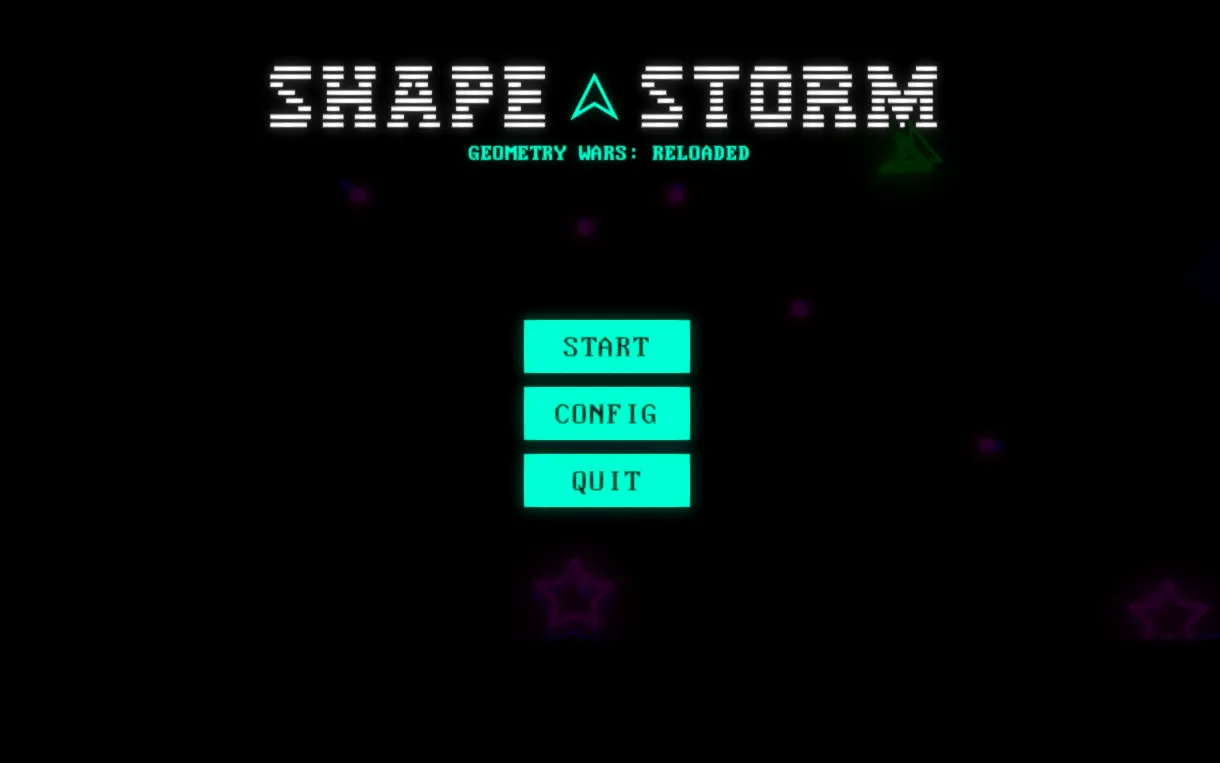
Main Menu Customization
The main menu is controlled by the MainMenu component found in the Menu scene under the MenuCanvas object.
Location
Menu Scene > MenuCanvas > MainMenu GameObject
Title & Subtitle
Customize the game’s title and tagline displayed on the main menu.
Inspector Fields:
- Title Text: The main game title (default: “Shape Storm”)
- Subtitle Text: Tagline or description (default: “A Fast-Paced Colorful Adventure”)
Both fields support rich text formatting. Change them directly in the Inspector to update your branding.
Logo Setup
Replace the default Shape Storm logo with your own branding.
Inspector Fields:
- Logo Image: Reference to the UI Image component displaying your logo
- Logo Sprite: The sprite asset to display
Steps to change logo:
- Import your logo sprite into the project
- Set Texture Type to “Sprite (2D and UI)“
- In the MainMenu component, drag your sprite to the Logo Sprite field
- Adjust the Logo Image’s RectTransform for positioning/sizing
Background Video
Add a looping background video to enhance your menu’s visual appeal.
Inspector Fields:
- Video Player: Reference to the VideoPlayer component
- Raw Image: The UI element displaying the video
- Video Clip: Video file for standalone builds
- WebGL Video URL: URL to video for WebGL builds (required for web)
Platform Considerations:
- Standalone Builds: Use the Video Clip field with a VideoClip asset
- WebGL Builds: Videos must be hosted externally - provide URL in WebGL Video URL field
Supported Formats:
- MP4 (H.264)
- WebM
- MOV
Steps to add background video:
- Import your video file to the project
- Drag it to the Video Clip field in MainMenu component
- For WebGL, upload video to a CDN and paste URL in WebGL Video URL
- Video will loop automatically and play on menu load
Background Music
Set the music that plays on the main menu.
Inspector Fields:
- Background Music: AudioClip to play on menu load
Steps to change menu music:
- Import your audio file (MP3, WAV, OGG)
- Drag the AudioClip to the Background Music field
- Music starts automatically when the menu loads
The AudioManager handles volume control and transitions to gameplay music.
Splash Screens
Display company logos or branding before the main menu loads.
Location
Menu Scene > MenuCanvas > SplashScreen GameObject
The SplashScreenManager component controls splash screen behavior.
Configuration
Inspector Fields:
- Splash Screens: Array of sprites to display sequentially
- Display Duration: How long each splash screen shows (in seconds)
- Fade Duration: Transition time between screens (in seconds)
Steps to add splash screens:
- Add your logo/branding sprites to the project
- In the SplashScreenManager, set the Splash Screens array size
- Drag your sprites into the array slots
- Adjust Display Duration (recommended: 2-3 seconds per screen)
- Set Fade Duration (recommended: 0.5-1 second)
Behavior:
- Screens display in array order
- Each screen fades in, displays for the duration, then fades out
- After the last screen, transitions to main menu
- Screens play once per game session
Shape Customization
Players can customize ship, bullet and HUD colors through the in-game customization menu.
Location
Menu Scene > MenuCanvas > ShapeSelect > Overlay > Customization
The Customization component handles color options.
Available Color Zones
Inspector Fields:
- Ship Colors: Array of color presets for the player shape
- HUD Colors: Array of color presets for in-game HUD
- Bullet Colors: Array of color presets for player bullets
How It Works:
- Players select colors from the customization menu
- Choices are saved in PlayerPrefs
- Colors apply to the player shape, the player bullets and their shape stats HUD in-game.
To add/modify color options:
- Expand the color array (Ship Colors, HUD Colors, or Bullet Colors)
- Set each color value using Unity’s color picker
- Colors appear as selectable options in the customization menu
Loading Screen Customization
Customize the loading screen shown during scene transitions.
Location
Loading Scene > Canvas > Loader GameObject
The Loader component manages the loading screen behavior, hints, and icon display.
Inspector Fields
Loading Hint Customization:
- Hint Text: TextMeshProUGUI field displaying the loading hint
- Keyword Color: Color used to highlight keywords in hints (e.g., button names)
Loading Icon Customization:
- Loading Image: SpriteRenderer displaying the loading icon
- Icon: Sprite to use for the loading icon
- Icon Color: Color tint applied to the loading icon
- Rotate Icon: Enable/disable icon rotation during loading
- Rotation Speed: How fast the icon rotates (degrees per second)
Customizing Loading Hints
Loading hints are hardcoded in the Loader script and display randomly during loading. To customize them, you need to edit the script directly.
Steps to change loading hints:
- Navigate to
Scripts > Loader > Loader.cs - Open the script in your code editor
- Locate the
GenerateQuote()method - Edit the hint strings in the switch cases
- Save the script
The script automatically detects controller vs keyboard input and shows appropriate hints for each control scheme.
Example hint format:
case 1: return $"don't forget to dash with <color=#{keywordColor.ToRGBHex()}>{ControlsUI.instance.keyboardDash}</color> - it might even save you.";The <color> tags use the Keyword Color from the Inspector to highlight control names.
Loading Icon Setup
Configure the rotating icon displayed during loading.
Steps to customize:
- Import your icon sprite
- Assign it to the Icon field in the Loader component
- Set Icon Color for tinting (white for no tint)
- Enable Rotate Icon for continuous rotation
- Adjust Rotation Speed (recommended: 90-180 for smooth rotation)
The icon provides visual feedback that the game is loading.
Wave Completion Quotes
Between waves, players see motivational quotes or tips. These are separate from loading hints and are managed by the WaveQuotes component.
Location
Scripts > UI > WaveQuotes.cs
Customizing Wave Quotes
Wave quotes are also hardcoded in the script. To customize them:
- Navigate to
Scripts > UI > WaveQuotes.cs - Open the script in your code editor
- Locate the quote generation method
- Edit the quote strings
- Save the script
Wave quotes display after completing waves and provide encouragement or gameplay tips to the player.
Getting Help
Don’t hesitate to reach out if you need help:
- Email: [email protected]
- Social: Find me on GitHub, Twitter, or any of the platforms linked in the header
I built these tools to help developers, so please use me as a resource. Questions, bug reports, feature requests—I want to hear all of it.
Next: Customize Player & Controls to adjust movement and input settings.