
Audio & Effects
The Audio & Effects system manages all game audio including sound effects, background music rotation, and audio muffling. Configure sounds and music tracks through the Unity Inspector.
What You Can Customize
This guide covers audio system customization:
- Sound effect clips for all game actions
- Background music track rotation
- Default volume levels
- Audio muffle effect parameters
- Volume slider references
All configuration happens through the AudioManager component.
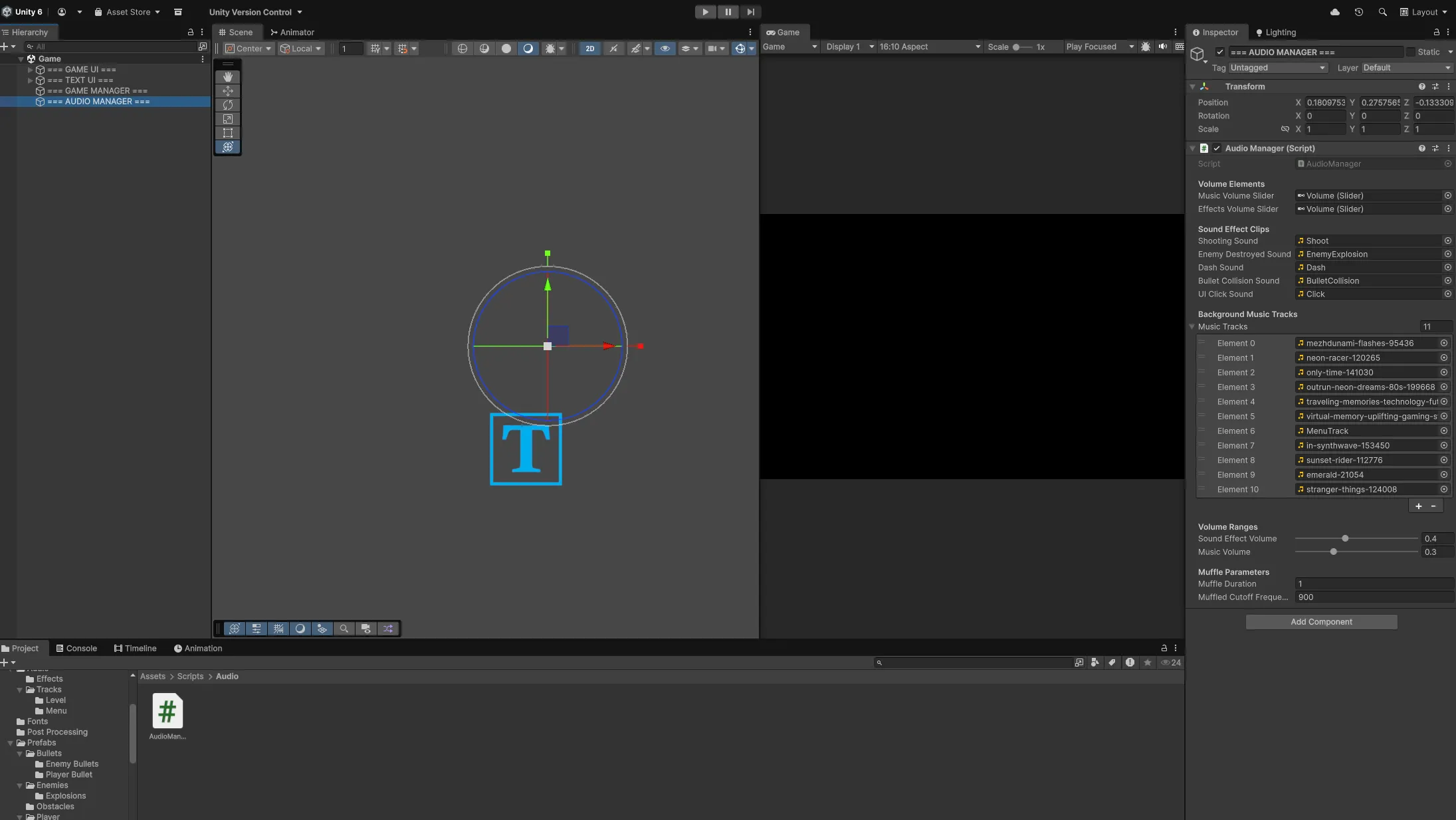
Audio Manager Configuration
The AudioManager controls all audio playback and management.
Location
Game Scene > === AUDIO MANAGER === > AudioManager (Script)
The AudioManager component is attached to the audio manager object in the Game scene.
Sound Effect Clips
Configure audio clips that play during specific game events.
Inspector Fields
Sound Effect Clips:
- Shooting Sound: Plays when player or enemy fires
- Enemy Destroyed Sound: Plays when enemy dies
- Dash Sound: Plays when player uses dash ability
- Bullet Collision Sound: Plays when bullets collide with objects
- UI Click Sound: Plays when UI buttons are clicked
Replacing Sound Effects
Steps:
- Import your audio file into the project
- Navigate to AudioManager component
- Locate the sound effect you want to replace
- Drag your audio clip into the corresponding field
Supported audio formats: MP3, WAV, OGG
The sound effect will play automatically during its associated game event.
Background Music Tracks
Shape Storm plays random music tracks that automatically loop and rotate.
Inspector Fields
Background Music Tracks:
- Music Tracks: Array of audio clips for background music
How Music Rotation Works
The music system:
- Randomly selects a track from the array on game start
- Plays the selected track
- When track finishes, randomly selects another track
- Continues rotating through random selections
- Tracks can repeat if randomly selected again
This creates varied audio throughout gameplay sessions.
Adding Music Tracks
Steps:
- Import your music file into the project
- Navigate to AudioManager component
- Expand the Music Tracks array
- Increase the array size
- Drag your audio clip into the new slot
The track is now in the rotation and can be randomly selected.
Removing Music Tracks
Steps:
- Navigate to AudioManager component
- Expand the Music Tracks array
- Find the track you want to remove
- Either:
- Remove the element from the array, OR
- Decrease array size to exclude it
The track will no longer play during gameplay.
Replacing All Music
To completely replace the music:
Steps:
- Clear the Music Tracks array (set size to 0)
- Increase array size to your desired number of tracks
- Drag all your music files into the array slots
The game will now use only your custom music.
Volume Configuration
Set default volume levels for sound effects and music.
Inspector Fields
Volume Ranges:
- Sound Effect Volume: Default volume for sound effects (0.0 to 1.0)
- Music Volume: Default volume for background music (0.0 to 1.0)
Volume Elements:
- Music Volume Slider: Reference to UI slider for music volume control
- Effects Volume Slider: Reference to UI slider for effects volume control
Volume Behavior
Default Volumes:
- Sound Effect Volume and Music Volume set the initial levels
- Values range from 0.0 (silent) to 1.0 (full volume)
- These are fallback values when no saved preferences exist
Player Volume Control:
- Players can adjust volumes through in-game settings menu
- Slider values are saved in PlayerPrefs
- Saved preferences override default volumes
- Preferences persist between game sessions
Volume Management:
- Sound effects and music use separate audio sources
- Each source has independent volume control
- Sliders update volume in real-time during gameplay
Audio Muffle Effect
The muffle effect uses a low pass filter to create immersion during specific gameplay moments.
Inspector Fields
Muffle Parameters:
- Muffle Duration: How long the transition to/from muffled state takes (in seconds)
- Muffled Cutoff Frequency: Low pass filter frequency when audio is muffled
When Muffling Occurs
Audio automatically muffles during:
- Player is inside an obstacle
- Game over screen appears
- Upgrade menu appears between waves
Audio unmuffles when:
- Player exits obstacle
- Gameplay resumes after menus
How Muffling Works
The AudioManager uses an AudioLowPassFilter:
Unmuffled State:
- Cutoff frequency: 5000 Hz (full audio spectrum)
- Audio is clear and unfiltered
Muffled State:
- Cutoff frequency: Drops to Muffled Cutoff Frequency value
- Higher frequencies are reduced
- Creates underwater/distant sound effect
Transition:
- Frequency smoothly interpolates over Muffle Duration
- Gradual transition prevents jarring audio changes
Adjusting Muffle Effect
Muffle Duration:
- Lower values (0.5s) = Quick, snappy transitions
- Higher values (2s) = Slow, smooth transitions
Muffled Cutoff Frequency:
- Lower values (300-500) = Heavily muffled, very distant sound
- Higher values (1000-1500) = Slightly muffled, subtle effect
- Default is 900 Hz
Audio Source Configuration
The AudioManager creates two audio sources at runtime:
Sound Effects Source:
- Plays one-shot sound effects
- Does not loop
- Volume controlled by Effects Volume Slider
Music Source:
- Plays continuous background music
- Loops between tracks automatically
- Volume controlled by Music Volume Slider
These are created programmatically and don’t need manual setup.
Default Music Tracks
Shape Storm comes with 11 included music tracks:
- Mezhdunami Flashes
- Neon Racer
- Only Time
- Outrun Neon Dreams 80s
- Traveling Memories Technology Future
- Virtual Memory Uplifting Gaming Synth
- In Synthwave
- Sunset Rider
- Emerald
- Stranger Things
Congratulations! You’ve completed the Shape Storm customization guide. You now know how to customize every aspect of the template from menu branding to audio effects.
Quick Reference:
- Overview - Template introduction
- Installation - Setup guide
- Menu & Branding - Visual identity
- Player & Controls - Ship configuration
- Combat & Enemies - Enemy behavior
- Wave System - Wave progression
- Upgrades & Economy - Roguelite system
Getting Help
Don’t hesitate to reach out if you need help:
- Email: [email protected]
- Social: Find me on GitHub, Twitter, or any of the platforms linked in the header
I built these tools to help developers, so please use me as a resource. Questions, bug reports, feature requests—I want to hear all of it.