
Combat & Enemies
The Combat & Enemies system lets you configure enemy ships, their weapons, health, movement patterns, and spawn behavior through the Unity Inspector. Enemies automatically scale with wave progression.
What You Can Customize
This guide covers all combat and enemy customization:
- Enemy weapon properties (bullet speed, damage, fire rate)
- Enemy health, movement speed, and score rewards
- Explosion effects when enemies are destroyed
- Enemy bullet appearance and behavior
- Available enemies in wave rotations
- Enemy visual appearance
All customization happens through Inspector fields and prefab management.
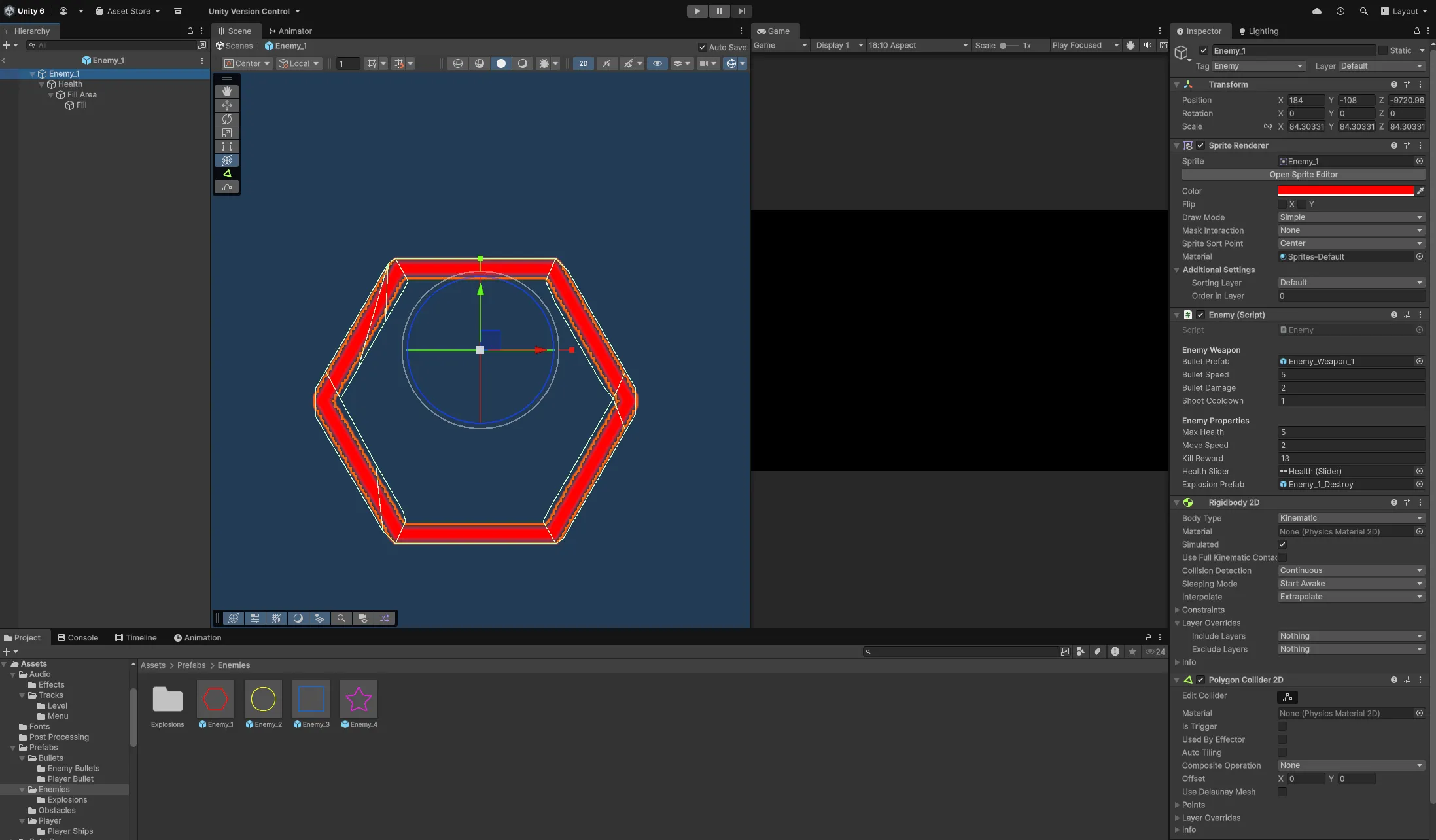
Enemy Prefabs
Enemy ships are prefabs containing all enemy-related components.
Location
Assets > Prefabs > Enemies
Each enemy prefab includes:
- SpriteRenderer: Visual appearance of the enemy ship
- Enemy: Combat behavior and properties
- Collider: Collision detection
- Health Slider: UI element showing enemy health
- Explosion Prefab: Particle effect reference for destruction
Enemy Weapon Configuration
Configure how enemies attack the player.
Location
Select an enemy prefab, then view the Enemy component in the Inspector.
Inspector Fields
Enemy Weapon:
- Bullet Prefab: The projectile prefab enemies shoot
- Bullet Speed: How fast enemy bullets travel
- Bullet Damage: Damage dealt to player shield on hit
- Shoot Cooldown: Time between shots (in seconds)
Weapon Behavior
Enemies automatically:
- Shoot at regular intervals based on Shoot Cooldown
- Aim bullets toward the player’s current position
- Fire from their current location
- Play shooting sound effect on each shot
Lower Shoot Cooldown values mean faster fire rate.
Enemy Properties
Configure enemy health, movement, and rewards.
Inspector Fields
Enemy Properties:
- Max Health: Starting health of the enemy
- Move Speed: How fast the enemy moves
- Kill Reward: Score awarded when enemy is destroyed
Additional References:
- Health Slider: UI slider reference showing current health
- Explosion Prefab: Particle effect played on destruction
Enemy Behavior
Movement:
- Enemies move in random directions
- Bounce off screen boundaries
- Change direction after bouncing
- Movement is continuous and autonomous
Health System:
- Health slider appears when enemy takes damage
- Slider hides after 1 second if enemy survives
- When health reaches 0, enemy is destroyed
Rewards:
- Kill Reward score is added to player’s total
- Score is awarded when enemy dies
- Different enemies can have different reward values
Wave Scaling
Enemies automatically become stronger with each wave. This happens through the ScaleProperties() method.
Scaling Formula
Health scaling:
Scaled Health = Max Health * (1 + 0.1 * Current Wave)Damage scaling:
Scaled Damage = Bullet Damage * (1 + 0.1 * Current Wave)This means:
- Wave 1: Base stats (100% health, 100% damage)
- Wave 5: 150% health, 150% damage
- Wave 10: 200% health, 200% damage
The scaling is automatic and cannot be disabled. To adjust difficulty curve, modify the base stats in the enemy prefabs.
Explosion Effects
Each enemy has a particle effect that plays when destroyed.
Explosion Prefab Location
Assets > Prefabs > Enemies > Explosions
Customizing Explosions
Steps:
- Open the explosion prefab for your enemy
- Adjust the Particle System properties:
- Color
- Size
- Lifetime
- Emission rate
- Velocity
- Shape
Matching explosions to enemies:
- Each enemy prefab references its own explosion in the Explosion Prefab field
- You can create unique explosions for different enemy types
- Or reuse the same explosion across multiple enemies
Steps to assign explosion:
- Select enemy prefab
- Locate the Explosion Prefab field in the Enemy component
- Drag your explosion prefab into the field
Enemy Bullet Customization
Customize the appearance of enemy projectiles.
Bullet Prefab Location
Assets > Prefabs > Bullets > Enemy Bullets
Changing Enemy Bullet Appearance
Steps:
- Open the enemy bullet prefab
- Locate the SpriteRenderer component
- Replace the sprite with your custom bullet shape
- Adjust size, color, and rotation
Assigning Bullets to Enemies
Each enemy can use different bullet prefabs:
- Select the enemy prefab
- In the Enemy component, locate Bullet Prefab field
- Drag your custom bullet prefab into the field
This allows different enemy types to shoot visually distinct projectiles.
Managing Available Enemies
Control which enemies spawn during waves through the WaveManager component.
Location
Game Scene > === GAME MANAGER === > WaveManager
The WaveManager contains an Enemy Prefabs array that determines which enemies can spawn.
Inspector Fields
Enemy Prefabs Array:
- Array of enemy prefabs available for spawning
- Enemies are randomly selected from this array during waves
- Add/remove enemies by modifying this array
Adding New Enemies to Wave Pool
Steps:
- Navigate to
Game Scene > === GAME MANAGER === - Select the GameObject with the WaveManager component
- In the Inspector, locate the WaveManager component
- Expand the Enemy Prefabs array
- Increase the array size
- Drag your new enemy prefab into the new slot
The enemy will now spawn during waves.
Removing Enemies from Wave Pool
Steps:
- Navigate to the WaveManager component
- Expand the Enemy Prefabs array
- Find the enemy you want to remove
- Either:
- Remove the element from the array, OR
- Decrease the array size to exclude it
The enemy will no longer spawn during waves.
Creating Enemy Variants
Create multiple enemy types with different behaviors and stats.
Steps to Create New Enemy Type
-
Duplicate existing prefab:
- Navigate to
Assets > Prefabs > Enemies - Right-click an enemy prefab → Duplicate
- Rename it (e.g., “Enemy_Fast”)
- Navigate to
-
Customize stats:
- Open the prefab
- Adjust Enemy component weapon properties
- Modify health and movement values
- Change kill reward
-
Customize visuals:
- Replace the SpriteRenderer sprite
- Assign custom bullet prefab
- Create/assign unique explosion effect
-
Add to wave pool:
- Open Game Scene
- Navigate to === GAME MANAGER === > WaveManager
- Add the new prefab to the Enemy Prefabs array
The new enemy type will now appear in wave rotations.
Enemy Visual Customization
Change enemy ship appearance by swapping sprites.
Changing Enemy Sprite
Steps:
- Navigate to
Assets > Prefabs > Enemies - Select the enemy prefab you want to customize
- Locate the SpriteRenderer component
- Import your custom enemy sprite
- Set the sprite’s Texture Type to “Sprite (2D and UI)“
- Drag your sprite into the Sprite field of the SpriteRenderer
The enemy’s visual appearance updates immediately.
Adjusting Collider
When changing sprite shape, you may need to adjust the collider:
Steps:
- Select the enemy prefab
- Locate the Collider2D component
- Adjust collider size/shape to match new sprite
- For complex shapes, use Polygon Collider 2D
Proper collider setup ensures accurate collision detection.
Health Slider Configuration
The health slider shows enemy damage visually during combat.
Inspector Fields
Health Slider Reference:
- Health Slider: UI Slider component reference
Behavior
- Slider is hidden by default
- Appears when enemy takes damage
- Updates to show current health percentage
- Hides after 1 second if enemy survives
The slider is automatically managed by the Enemy script.
Understanding Enemy AI
Enemy movement is autonomous and random:
- Initialization: Enemy starts with random direction
- Movement: Moves continuously in current direction
- Boundary Detection: Checks if position is within camera bounds
- Bounce: Reflects direction when hitting boundary
- New Direction: Sets new random direction after bounce
- Repeat: Continues moving in new direction
This creates unpredictable movement patterns that challenge the player.
Weapon Behavior Details
Enemy shooting behavior:
- Coroutine Start: ShootRoutine begins when enemy spawns
- Interval Wait: Waits for Shoot Cooldown duration
- Target Calculation: Gets direction to player’s current position
- Bullet Spawn: Instantiates bullet at enemy position
- Bullet Properties: Sets speed, damage, and ownership
- Repeat: Returns to step 2
Enemies always aim at the player’s position when firing, not where the player will be.
Getting Help
Don’t hesitate to reach out if you need help:
- Email: [email protected]
- Social: Find me on GitHub, Twitter, or any of the platforms linked in the header
I built these tools to help developers, so please use me as a resource. Questions, bug reports, feature requests—I want to hear all of it.
Next: Configure Wave System to adjust wave progression and spawning.